The 3D Systems Cube Printer caught me off guard with how clean the prints came out. Accuracy, detail, smooth layers with PLA — it checks those boxes without making you fight for it.
And honestly, it’s one of the easiest printers I’ve ever sat down with. That mix of quality and simplicity makes it a natural fit for offices, classrooms, or just somebody who doesn’t want to spend weekends troubleshooting.
You get two extruders right out of the box, which means dual-color printing in 20 different shades of ABS or PLA.
WiFi comes built in. You run the whole show from a PC, Mac, iPhone, or Android through the 3D Systems app.
Now here’s the catch you should know about before buying: you’re stuck with 3D Systems’ proprietary filament cartridges, and they’re not cheap compared to regular spools.
Overview

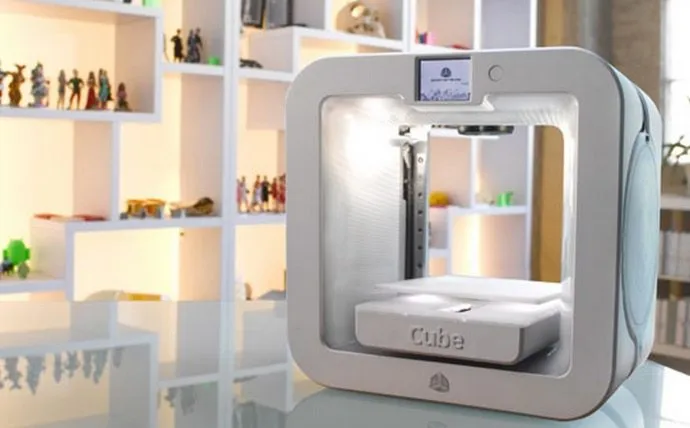
3D Systems Cube 3D Printer
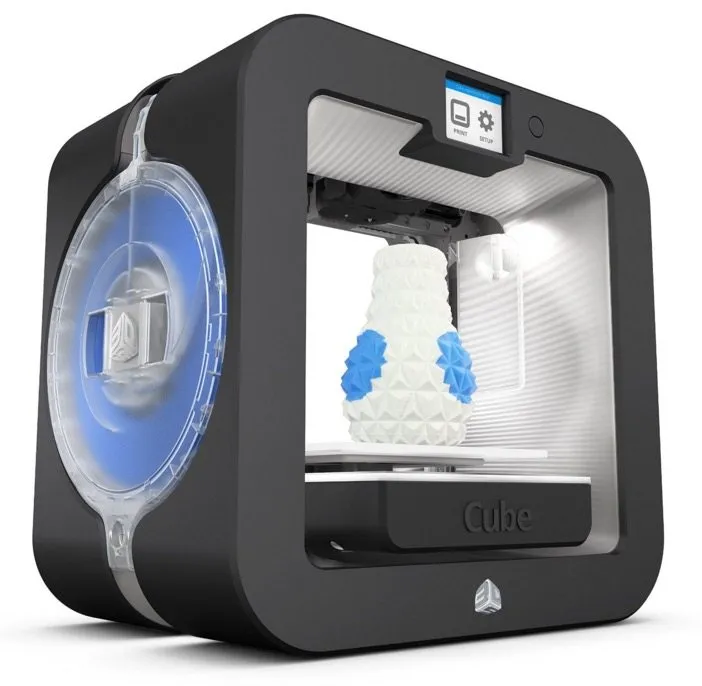
A fully enclosed printer built for people who don't want to tinker. Dual-color printing, cloud software, and a print head that replaces itself with every cartridge swap.
Pros
- Easiest setup of any printer tested
- Never need to clean the print head
- WiFi control from any device
Cons
- Proprietary cartridges cost more than standard filament
- Enclosed design prevents modifications
Photo Gallery
Key Specifications
| Spec | Detail |
|---|---|
| Build Volume | 6 x 6 x 6 inches (216 cubic inches) |
| Layer Resolution | 70 or 200 microns |
| Filament Type | ABS, PLA (proprietary cartridges) |
| Connectivity | WiFi, USB |
| Display | 2.5 inch touchscreen |
| Price Range | Mid-range |
The Design
Here’s where the Cube does things differently than most 3D printers. Usually, the extruder sits on the machine permanently and melts plastic through a separate print head.
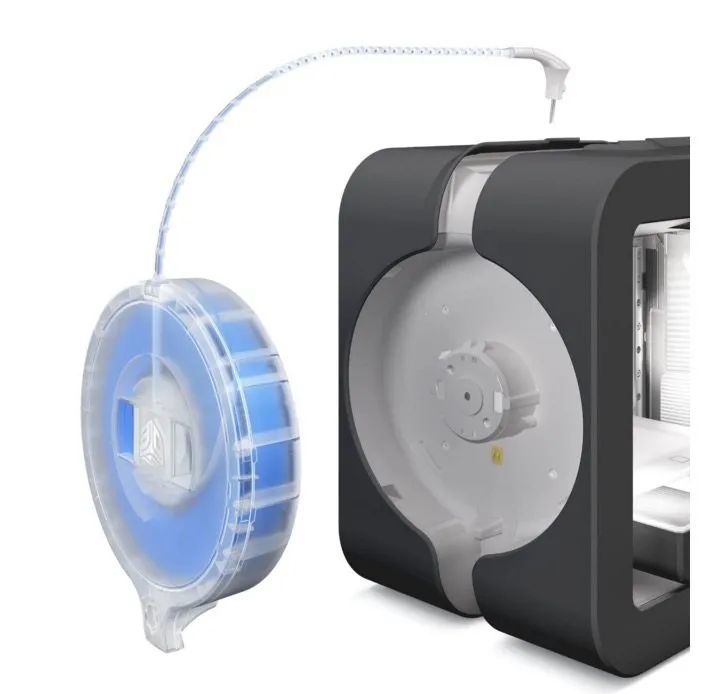
3D Systems flipped that. They built part of the extruder right into the filament cartridge — kind of like how some inkjet printers embed the print head in the ink cartridge. It’s the polar opposite of open-frame machines like the HICTOP Prusa I3 where every component is on you.
So every time you pop in a fresh cartridge, you’re getting a brand new print head too. That means you’ll never have to scrape dried filament out of a clogged nozzle.
The trade-off? Your wallet feels it. Proprietary cartridges cost noticeably more than standard spools, and they’re PLA only.
Compare that to standard filament spools on machines like the FlashForge Creator Pro, and the cost difference adds up fast. If you’d rather never think about extruder maintenance though, the convenience might be worth it to you.
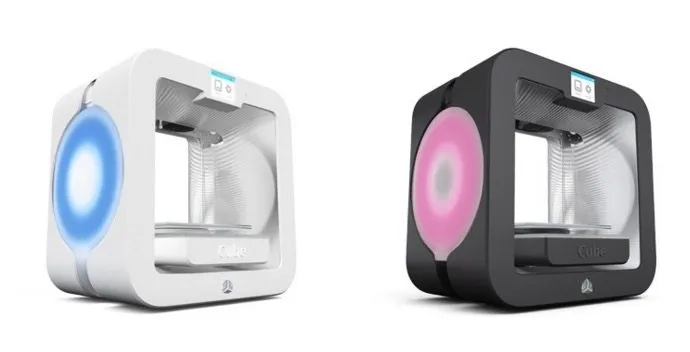
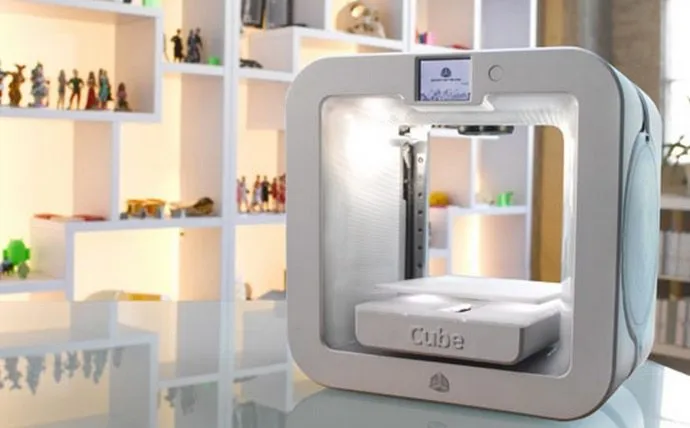
Design-wise, it’s sleek and modern looking. A box, sure, but a good-looking one that doesn’t scream “science project.”
One gripe I had: the tube locking mechanism occasionally refused to click in. When that happens, the filament doesn’t melt the way it should.
To their credit, 3D Systems saw this coming and built in an error alert. The fix is straightforward (pull the metal end out and reseat it), but when it happens three times in a row, your patience gets tested.
During printing, the head slides side to side while the bed moves vertically and front to back. That gives you a total print volume of 6 x 6 x 6 inches, or 216 cubic inches.
That’s smaller than something like the MakerBot Replicator 2, but I found the size worked fine for most of what I throw at it. Anything bigger, I just split the model and snap the pieces together afterward.
A Fully Automated Setup
There’s a reason the 3D Systems Cube Printer markets itself to beginners. I had my first print going within 30 minutes of unboxing, and most of that was just sitting there watching it calibrate itself.
Every printer needs recalibration after shipping since things shift around in the box. Most make you do it by hand. The Cube does it for you, no input required.
That’s basically the whole philosophy of this machine: tuck the technical stuff away so you never have to deal with it. The Afinia H480 takes a similar beginner-first approach with its auto-calibration. If tinkering isn’t your thing, either one will get you printing fast.
Quick heads-up though. There’s no heated bed, so you’ll want to swipe a glue stick across the print surface before each job for better adhesion.
The Software Is Cloud-Based
I’ll admit I was skeptical when I heard “cloud-based.” A printer aimed at beginners, running on cloud software? Seemed like it could go sideways fast for someone who isn’t tech-savvy.
Turns out, I was wrong. The printer itself is basically just a power button and a 2.5-inch touchscreen.
Want to pick a model? Connect to WiFi? Load filament? Tap the screen. All the heavy lifting happens on 3D Systems’ servers, so your computer isn’t doing any of the work.
You upload your models through their free software, and that’s literally all there is to it. If you’d rather avoid the cloud entirely and work through a standalone touchscreen, the FlashForge Finder is worth a look.
The Print Quality
Alright, the part that actually matters: how does it print? Faster than I expected, honestly.
It’s noisy though. There’s a distinct clank every time the bed shifts up or down, and if you’re someone who likes getting under the hood, forget it. The enclosed design keeps you completely locked out.
This is not a tinkerer’s machine. Period. If modding hardware is your thing, you’ll be much happier with something like the Printrbot Simple Metal.
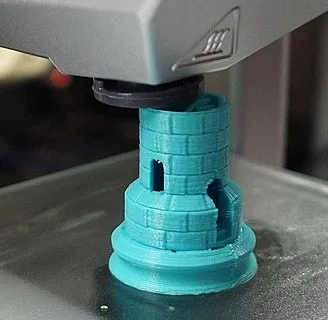
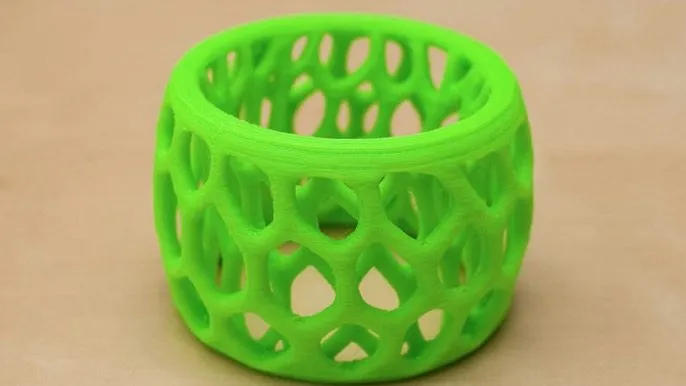
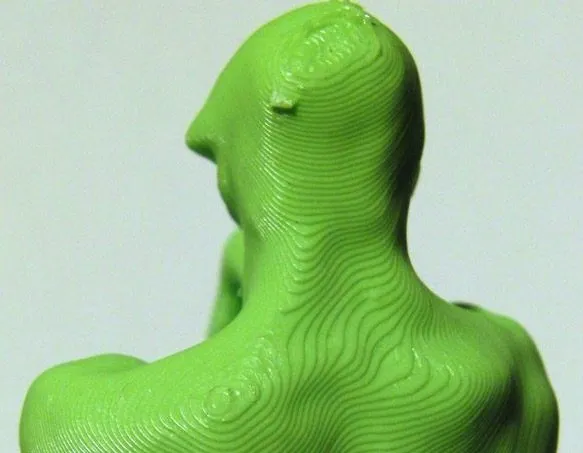
But when the Cube was firing on all cylinders? The prints looked genuinely impressive. Smooth surfaces, curves that blended seamlessly, layers you had to squint to see.
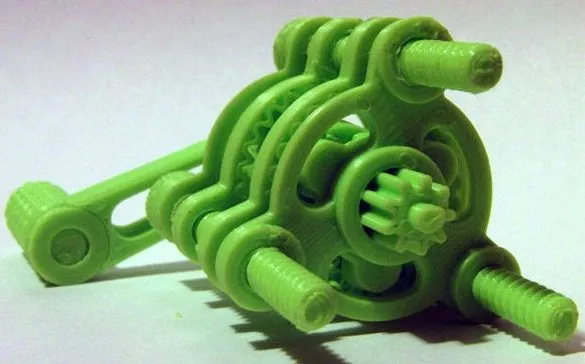
Models came out almost indistinguishable from the original design files. Even complex geometry with fine details printed cleaner than I anticipated. With the noise and pricey cartridges, I needed the print quality to justify itself — and it did.
I honestly didn’t want to touch a single thing inside that enclosure after seeing the results.
That said, not every print came out perfect. I had a few failures along the way.
Usually a rerun fixed the issue. Occasionally the printer would produce a model with missing edges for no obvious reason, or things came out a little stringy.
These were rare occurrences though. A restart or fresh calibration cleared it up every time.
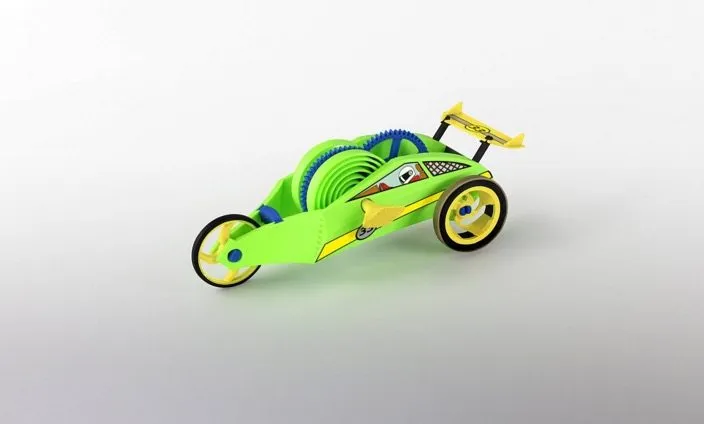
The model pictured above took roughly 5 hours from start to finish. Not blazing fast, but the speed is fair for what you’re paying.
My one real complaint about detail: super fine features sometimes had slightly rough edges. You genuinely won’t notice unless you’re examining the print up close, and for practical stuff like soap dishes or phone stands it’s a non-issue.
If you need extreme precision, plan on stepping up to a higher-end machine. The LulzBot Mini delivers noticeably finer results, but at a steeper price. The Cube gives you two layer thickness options — 200 or 70 microns — with nothing in between.
Maintenance
Maintenance is probably my favorite thing about this printer. It’s laughably simple. Swapping filament takes seconds.
Need to clean the print bed? Pull it straight out — it’s held on by magnets, no clips, no latches, nothing to fumble with. Little waste bins collect stray filament so cleanup after each print barely counts as a chore.
If something does break on you, 3D Systems’ customer service is solid. You won’t be upgrading anything thanks to the sealed enclosure, but that was never the point of this machine. The Dremel Idea Builder follows a similar philosophy — enclosed, low-maintenance, and backed by strong US-based support.
Frequently Asked Questions
It's actually pretty clever, the print head is built right into each filament cartridge, kind of like how inkjet printers work. So every time you pop in a new cartridge, you get a fresh print head. The downside? Proprietary cartridges cost noticeably more than standard filament spools.
Unfortunately, no. You're locked into 3D Systems' proprietary cartridges. It's the trade-off you make for never having to clean the print head yourself.
Yep. You can run it from a PC, Mac, iPhone, or Android device using the 3D Systems app over your WiFi network.
Final Thoughts
If you’re the type who likes cracking open machines and learning how they tick, the 3D Systems Cube Printer will drive you nuts. Everything is sealed inside that steel case, and that’s by design. They don’t want you in there.
The entire philosophy is automation. Cloud processing, auto-calibration, and a print head that swaps itself out every time you buy a cartridge. You’re along for the ride, not behind the wheel.
But for someone who just wants clean prints without a learning curve? The Cube nails that. It’s simple, it works, and the price is reasonable for what you get. I’m genuinely glad I got to put it through its paces.